
Application Default Ports
Introduction
Cisco Secure Firewall 10.0 introduces AppID default port specifications, an enhancement that automatically associates each application with its typical ports. When you add an AppID to a new access control rule in Firewall Management Center (FMC), the corresponding default ports are now inherently applied. This allows administrators to enforce both application and port context simultaneously, improving security posture while reducing manual effort. The defaults can be overridden easily, and existing rules remain unchanged unless you choose to update them.
Background
Modern firewalls rely on application visibility and control to accurately identify and manage network traffic. Traditional port-based rules are often no longer sufficient, since many apps can operate over non-standard ports. For example, an SSH server might be configured to run on TCP/443, a port normally reserved for HTTPS traffic.
Cisco Secure Firewall has long provided robust application identification through the Snort OpenAppID framework, which uses LUA-based detectors to fingerprint traffic inline. This engine is port-agnostic, meaning it can detect an app regardless of which port it uses, enabling flexible, accurate enforcement.
While port-agnostic detection offers flexibility, many organizations prefer to restrict traffic to an app's expected ports. Doing so aligns with defense in depth principles and prevents misuse of open ports for unrelated traffic. It also makes processing on the firewall more efficient, as it can quickly scope application enforcement by first matching the port. In practice, however, administrators often skip configuring port constraints because the process can be tedious, especially for lesser-documented consumer apps (for example, gaming platform Steam uses a wide range of unique ports).
Feature overview
- Dynamic default ports: When you add an application to a new access control rule, the rule will automatically apply application default ports. Cisco manages these port assignments over time through VDB updates, so if an app's official ports change, your rule keeps up with those changes.
- Easy overrides: You can easily switch the rule to match on any ports or replace with your own custom ports, maintaining design flexibility.
- Non-disruptive upgrades: Existing rules remain as-is. You can easily move individual rules to the new behavior in the rule editor.
- Security and efficiency benefits: By pairing applications with their common ports, traffic that clearly falls outside those norms can more easily be blocked immediately, without pausing for unnecessary layer-7 inspection. This helps to prevent short-lived sessions or attacks from slipping through, tightening security while improving efficiency.
Requirements and limitations
- Firewall Management Center (FMC) version: Requires FMC 10.0 or later. The feature is also supported on cloud-delivered FMC.
- Managed Devices: Cisco Secure Firewall Threat Defense (FTD) 7.7 or later is recommended. Earlier versions will function, but will exhibit minor behavioral differences in certain cases. See support for older platforms for details.
- Vulnerability Database (VDB) updates: Ensure automatic VDB updates and installations** are enabled. The VDB is updated regularly and contains both AppID definitions and their associated default ports. Keeping it current ensures new or modified applications continue to inherit accurate default port data.
- Firewall Device Manager: The on-box FDM interface does not support this feature. However, administrators can still manually specify equivalent default ports. See determine an application's default ports for details.
Adding an application to a rule
To begin, open your access control policy for editing in Firewall Management Center (FMC). Add a new rule, or edit an existing rule where you want to apply an application. In the rule editor, select the Applications tab, choose one or more applications, and add them to the rule.
If no custom ports were previously defined, the Ports field will automatically display Application Default. This setting dynamically applies the application's maintained default ports.
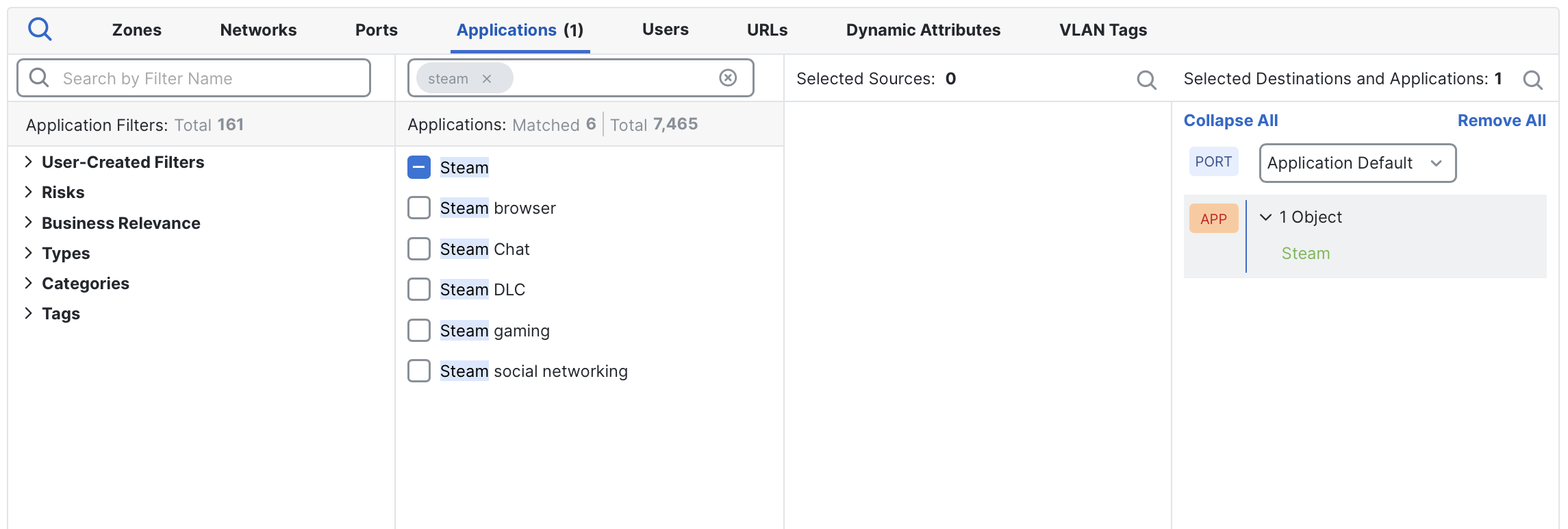
Steam application added, and the rule uses its application default ports
Changing the port matching mode
There are three supported port-matching behaviors when applying applications to rules:
- Application Default: The rule uses the default ports which are automatically maintained for the selected applications.
- Any: The rule allows the application to match against traffic on any port, replicating legacy default behavior.
- Custom: The rule matches only on explicitly-specified ports
To switch from Application Default to Any, click the Port drop-down menu and select Any.
Changing the rule to match an application on any port
To instead specify custom ports, open the Ports tab and add the desired ports to the rule. Once added, the custom entries replace the drop-down selector, and the rule will only match on those ports.
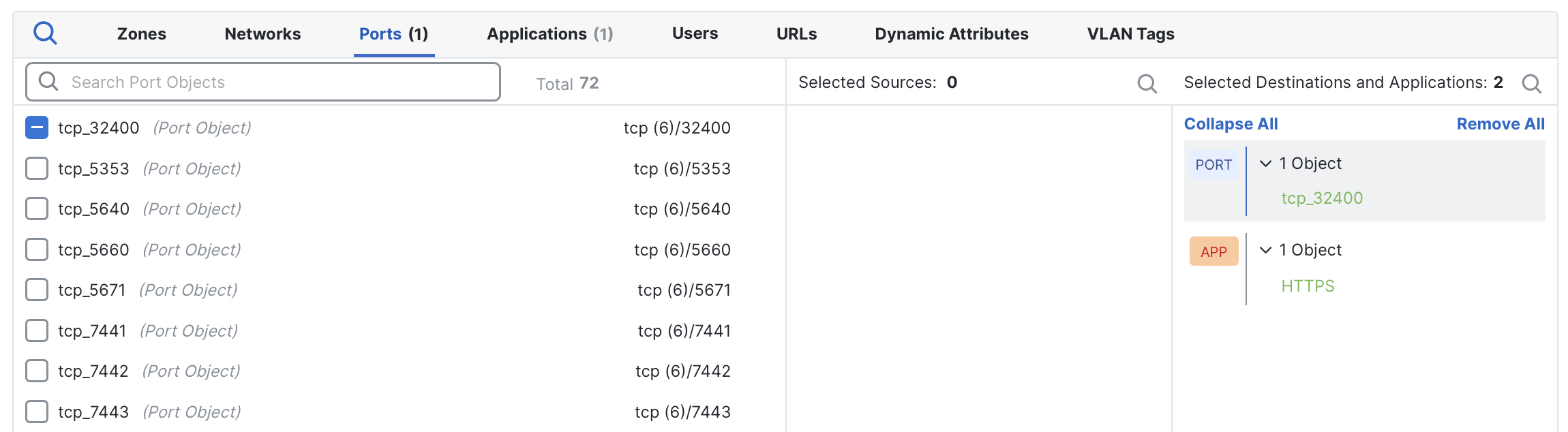
In this example, the HTTPS application will only match on TCP/32400.
Note on custom ports
When custom ports are specified, the application will only match on those ports. If you want a rule to match both default ports and additional custom ports, manually include the default ports as part of your custom list, or create multiple rules.
You can view an application's default ports directly from within the access control rule editor. See determine an application's default ports for details.
Switch an existing rule to default ports
To switch an existing rule to use Application Default ports, open your access control policy in Firewall Management Center (FMC) for editing. Locate the rule you want to modify and click Edit (pencil icon).
If the rule currently matches on Any ports, click the Port drop-down menu and select Application Default.
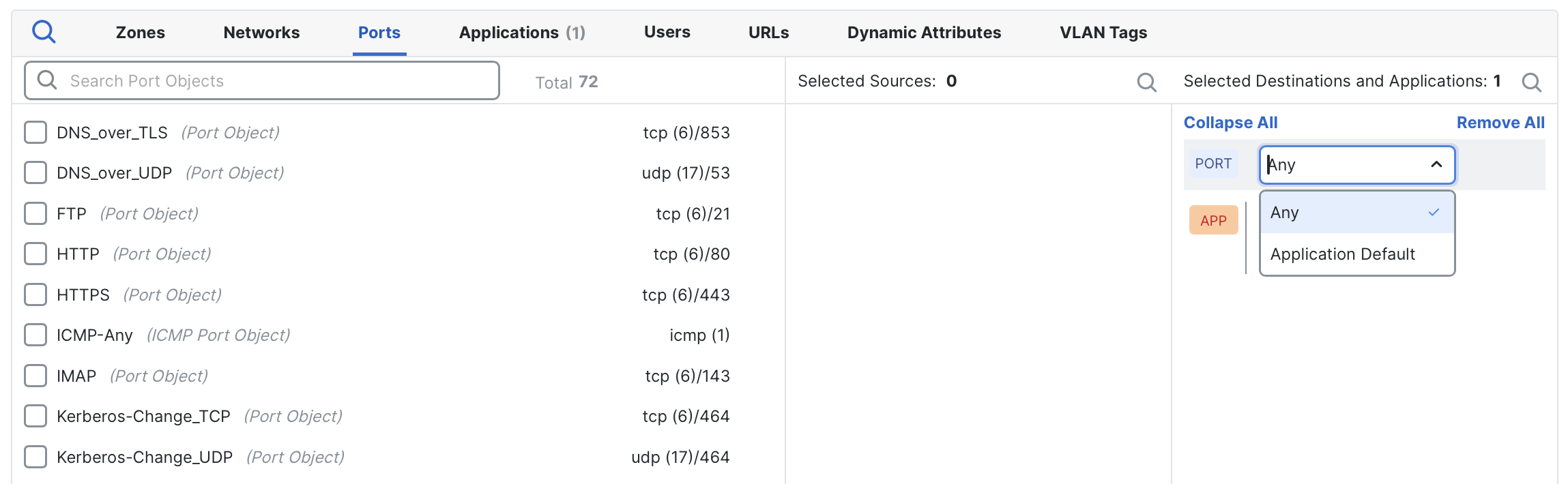
Changing a rule from Any ports to Application Default ports
If the rule instead currently specifies Custom ports and you want it to now use the dynamic defaults, simply remove all ports from the rule. The rule will automatically revert to Application Default mode.
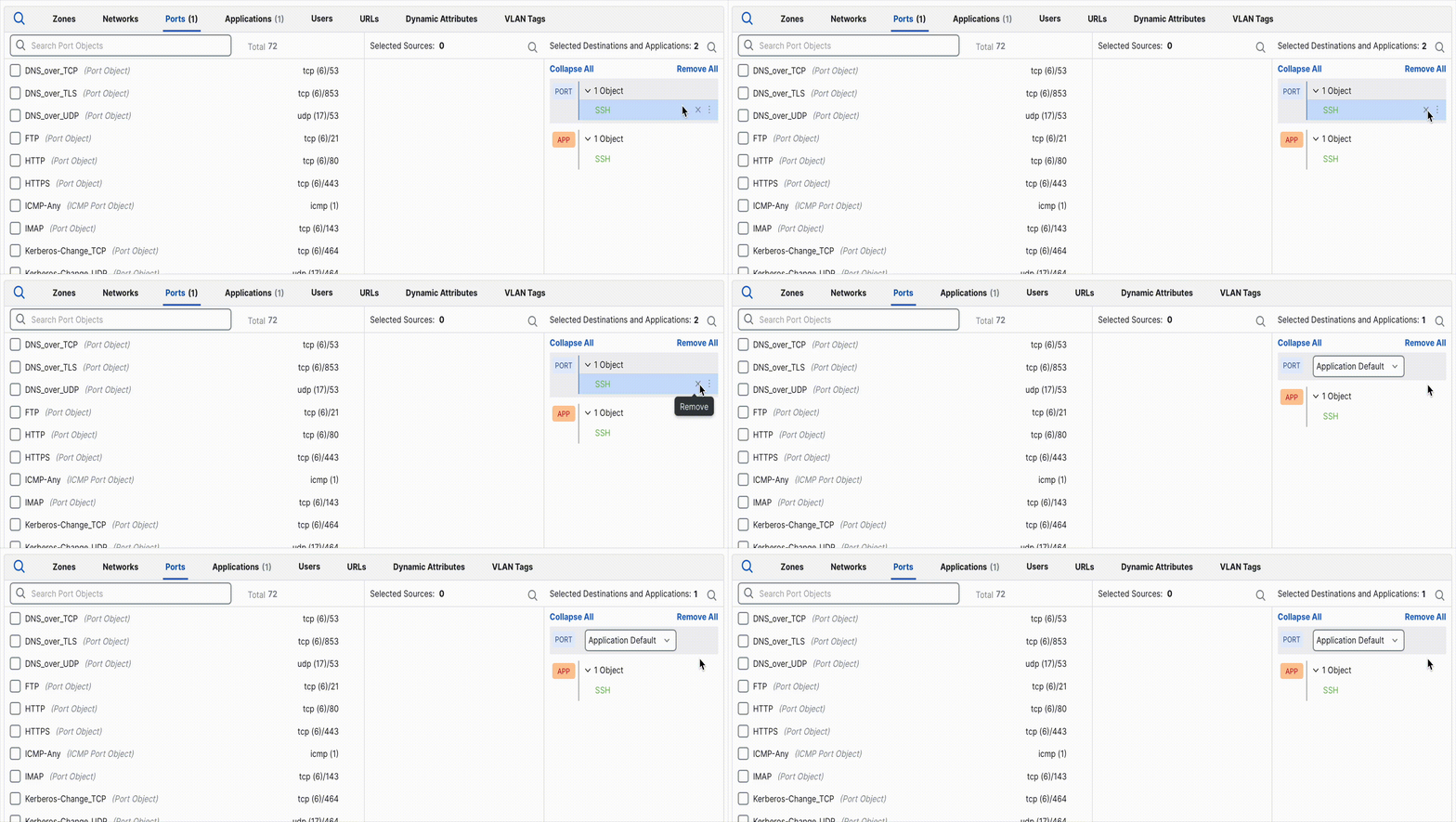
Removing port objects automatically restores Application Default behavior
Determine an application's default ports
You can view an application's current default ports directly within Firewall Management Center (FMC). Hover over the application name in the rule editor and click the Information (i) icon. A panel will open, displaying details about the application, including its Default Ports.
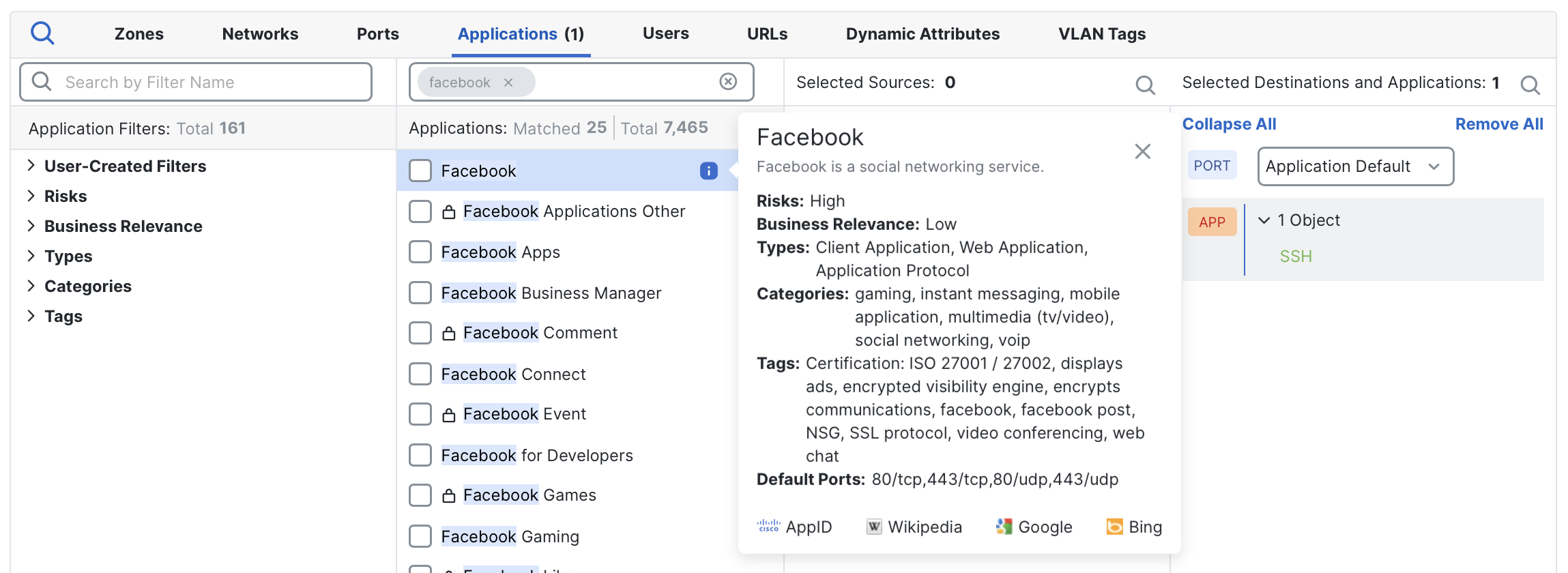
Viewing Facebook's default ports (80/tcp, 443/tcp, 80/udp, 443/udp) within the rule editor.
You can also lookup the same information on the Cisco AppID portal at https://appid.cisco.com. This portal provides comprehensive details for each application, such as descriptions, categories, and default ports, and is particularly useful for administrators using the on-box Firewall Device Manager, which does not currently support Application Default Ports directly.
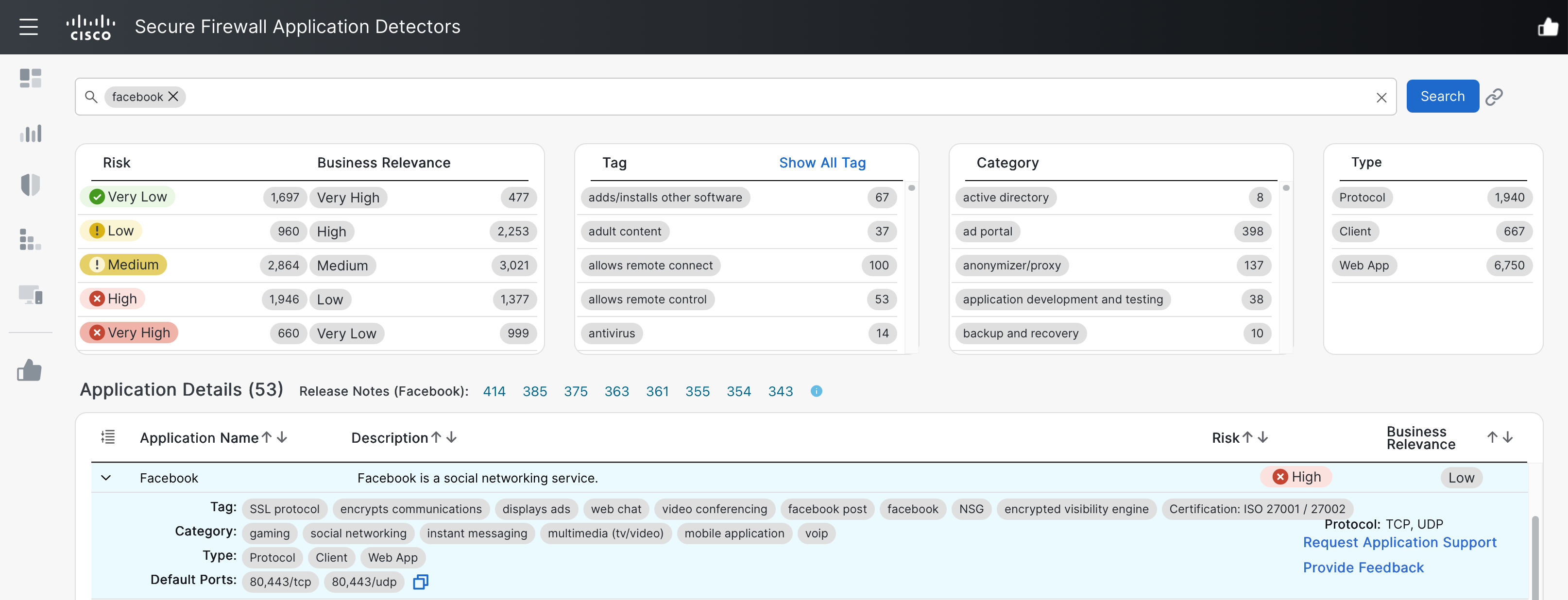
Facebook's default ports, as displayed on the Cisco AppID portal
Support for older platforms
Cisco recommends that all managed devices (FTDs) using this feature run Secure Firewall Threat Defense 7.7 or later. The feature is functional on earlier versions, but there are behavioral differences when multiple applications with distinct default ports are combined within the same rule.
Example: DNS and NTP in a single rule
The following example allows DNS and NTP applications on their default ports.
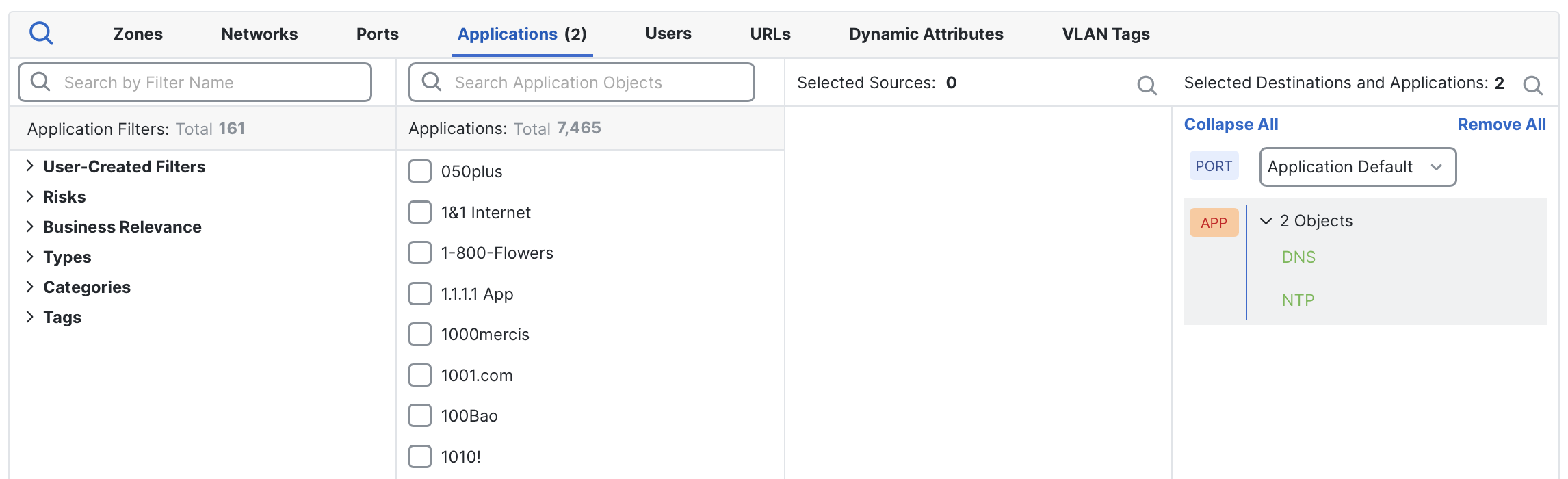
Access control rule allowing DNS and NTP applications on their respective default ports.
Behavior on FTD 7.7 and later
For FTDs running version 7.7 and later, each application is evaluated independently against its own default ports, even when combined in a single rule:
- NTP: Matches only on UDP/123 and TCP/123
- DNS: Matches only on UDP/53 and TCP/53
- NTP does not match over UDP/53 or TCP/53
- DNS does not match over UDP/123 or TCP/123
Behavior on FTD 7.6 and earlier
In earlier versions, the default ports for all applications in the rule are merged into a shared set. As a result:
- NTP: Matches on UDP/123, TCP/123 and also UDP/53, TCP/53
- DNS: Matches on UDP/53, TCP/53 and also UDP/123, TCP/123
This effectively broadens the rule's port coverage when multiple applications are included. However, if all applications share identical default ports, there is no functional difference in behavior between versions.
Workarounds for older versions
To ensure optimal matching behavior, we recommend one of the following:
- Upgrade: Update managed devices to Secure Firewall Threat Defense 7.7 or later whenever possible
- Split rules: On older versions, create separate rules grouping only applications that share the same default ports within a single rule
Providing application feedback
If you notice that an application detector is missing ports, includes incorrect ports, or needs another update, you can submit feedback directly to the Cisco AppID team:
- Visit the Cisco AppID portal at https://appid.cisco.com.
- Search for the application in question.
- Open its details page and click Provide Feedback.
Please include as much information as possible, such as observed traffic patterns, alternate ports in use, or relevant documentation. The AppID team reviews all submissions and may contact you for clarification. If the feedback results in a change, the update will be included in an upcoming VDB release.
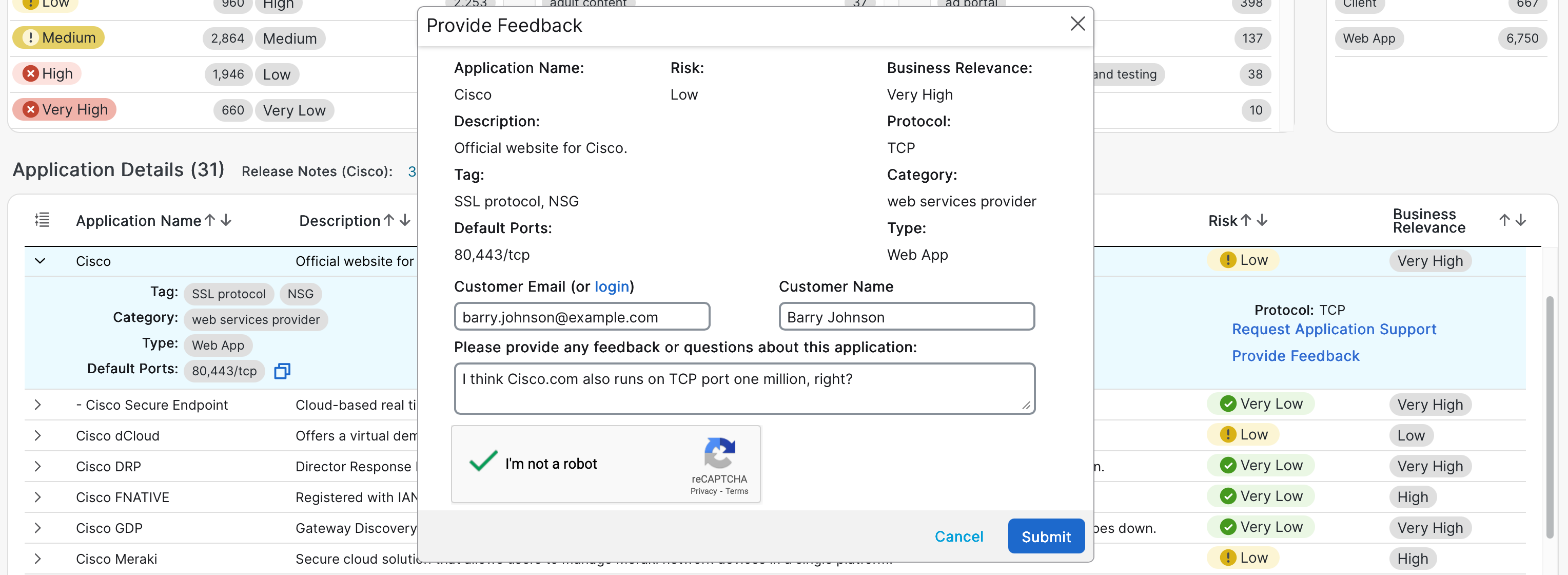
Submitting feedback through the Cisco AppID portal
Updated about 17 hours ago